
You’ve just been handed responsibility for a Milestone XProtect system you didn’t build, the documentation is questionable, and you’re not...


If you’re looking for a software program that helps you prove compliance, specifically video retention, then you’re in the right place!
The Boring Toolbox was built to make tasks like reporting simpler and less tedious for Milestone XProtect users. With the click of a button you can generate a report that gives you a comprehensive overview of your system health, including expected AND actual retention for every camera in your system.
Run it once, schedule it to land in your inbox every Monday, and even view historical retention and storage trends on your dashboard.
Quick to access and easy to understand data that helps you prove your system is, and has been, in compliance.
In this blog, we dig into the details you need to know about how to verify your recording history and how to tell if its off.
By default, your storage in Milestone XProtect is set to retain video for 7 days after which it will be deleted (read more about this from Milestone). If you need to retain your video for longer due to compliance regulations or otherwise, you will need to manually update your configured retention.
When we refer to “configured retention” we are talking about this setting within Milestone. Aka the 7 day default or whatever timeframe you changed it to, typically 30 days for most industries.
“Actual retention” is how many days of footage your storage is actually holding right now.
Those two numbers are often not the same, and the reasons are mundane.
Storage runs out before retention is reached. If your recording servers are filling up faster than expected, usually because cameras have been added since the last sizing pass or stream resolutions have crept up, Milestone overwrites old footage to make room for new footage. Your config still says 30 days. Your actual footage might only go back 18.
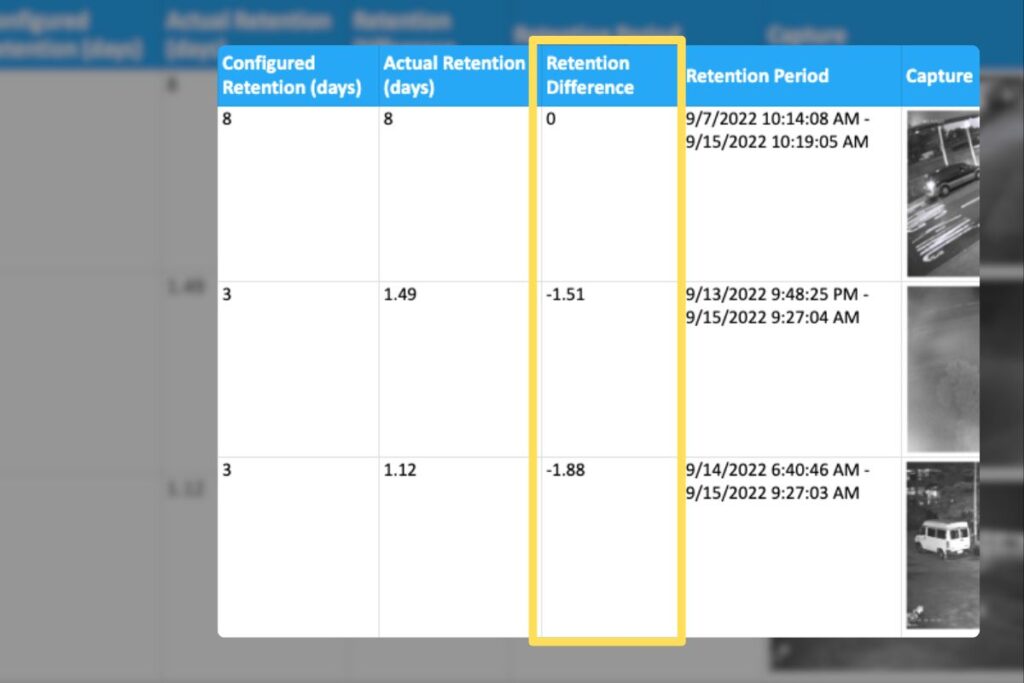
Settings drift during upgrades and migrations. Retention values sometimes get reset or changed during XProtect upgrades or storage reconfiguration projects. If nobody runs an audit afterward, nobody catches it.
One of our customers ran a retention report and found 113 cameras holding 300 days of footage on storage configured for 30.
They had no idea.
Other customers go the other way: cameras configured for 90 days, actually retaining 22.
Either direction is a problem if you’re being asked to prove compliance.”
The native Milestone Management Client doesn’t have a built-in retention compliance report.
You can pull individual storage settings per camera, sure, but verifying 30 days of recording across hundreds or thousands of cameras means building a spreadsheet by hand or using an add-on tool.
Depending on how many cameras you have, the manual route could suck up your whole day or week.
The Boring Toolbox runs the report from a single dashboard. Each row is a camera, and you’ll see:
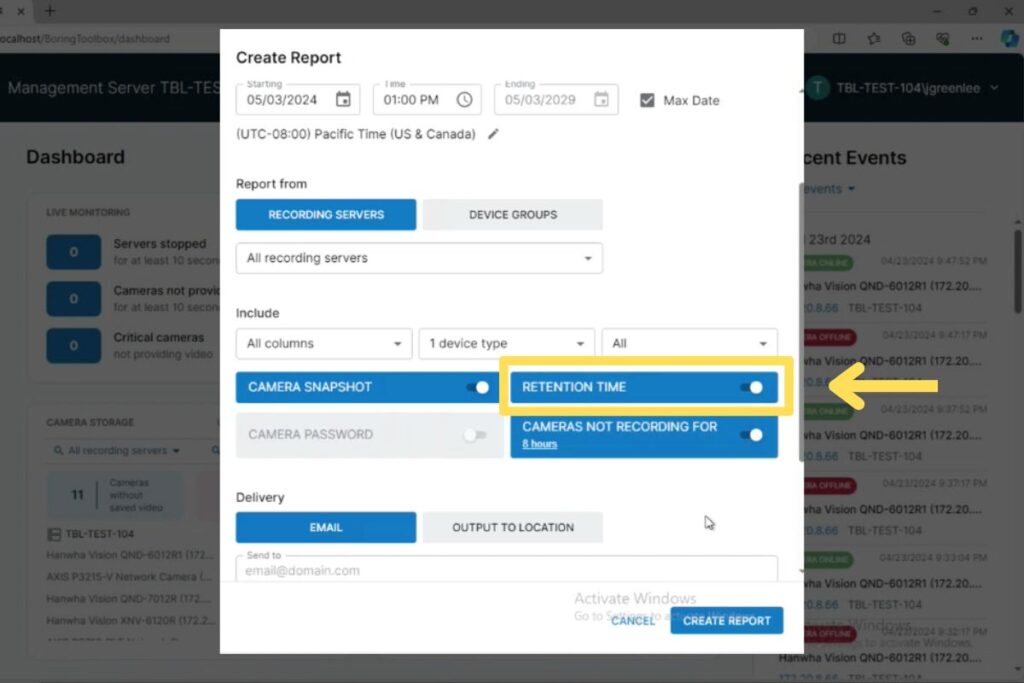
You can filter by site, recording server, camera group, or retention threshold, so pulling a list of cameras with less than 30 days of actual retention takes a single filter.
The output is an Excel file you can hand to an auditor or attach to a compliance ticket without reformatting anything.
Download our free excel report template to see exactly the kind of information you can learn from your system using The Boring Toolbox reports.
Template includes:
Yes. You can schedule retention reports daily, weekly, or monthly and have them delivered by email, Slack, Microsoft Teams, or to a shared drive. Pick whoever needs to see what, and they get it on whatever cadence makes sense.
A common setup for regulated verticals looks like:
The reason scheduling matters more than running reports manually: compliance becomes something you have proof of, not something you assume is happening.
When an auditor asks “show me proof you had 30 days of footage available on April 12th,” you don’t dig through Milestone trying to reconstruct it. You forward the report from that week.
If you manage multiple Milestone XProtect management servers, the multi-site edition pulls retention data from every site into one dashboard and one report.
No logging into each site individually.
No stitching three reports together in Excel.
For a county with separate XProtect installations across the courthouse, the sheriff’s office, public works, and the parks department, that’s one weekly retention report covering everything, with each site as a filter inside the same file. If the problem is at one of those buildings, you’ll see it.
A point-in-time retention report tells you what your system looks like today. A historical trend tells you what your system has looked like every day for the past six months. For most compliance use cases, the second one is what you actually need.
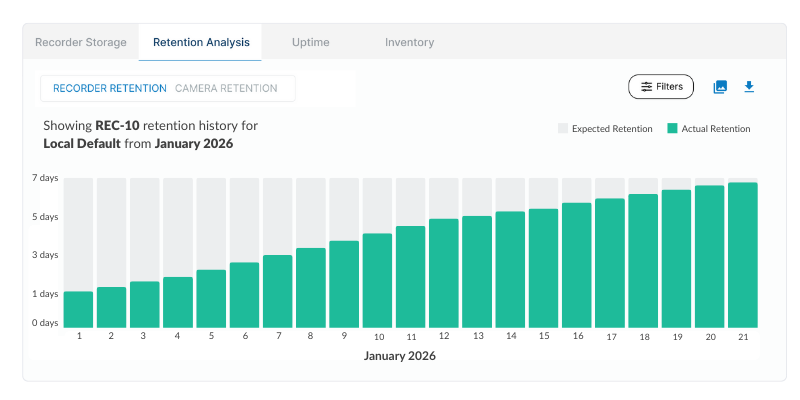
The Boring Toolbox tracks retention data over time and visualizes it on the dashboard. You can see, at a glance, whether your cameras have consistently held the required number of days, when any dips happened, and how long they lasted. If an auditor or attorney asks “can you prove you had 30 days available on March 14th,” the answer is in the dashboard, not in your memory of whether things felt fine that week.
The trend data is also where you catch problems before they become problems. A camera whose actual retention is creeping down week over week is telling you something, usually that storage is filling up faster than the system was sized for, or that something got reconfigured and nobody noticed. Catching the trend at week three is a 20-minute fix. Catching it at week ten, after retention has dipped below your legal requirement, is a much bigger conversation.
What the historical view gives you:
Two ways The Boring Toolbox catches this before it becomes a problem.
The retention report itself flags any camera whose actual retention is below configured. Filter to show only out-of-compliance cameras, and you’ve got your remediation list.
The health monitoring side catches the upstream cause. The dashboard shows storage capacity by recording server, flags servers running near capacity, and alerts you (email, Slack, or Teams, your call) when storage configuration issues show up.
Most retention shortfalls trace back to a storage problem that someone could have caught early if they’d been watching the right number.
Quick reference for what regulated industries typically need to retain. Always verify with your own compliance officer or legal counsel, because requirements vary by state, country, and use case, and the consequences of getting this wrong are real.
|
Vertical
|
Typical retention requirement
|
Source of requirement
|
|---|---|---|
|
County and municipal government
|
30 to 90 days, sometimes longer for evidence
|
|
|
K-12 and higher education
|
30 to 60 days
|
District policy and state education code
|
|
Healthcare
|
30 days minimum, longer for HIPAA-related areas
|
HIPAA, state health regulations
|
|
Cannabis (legal markets)
|
45 to 90 days, real-time monitoring required in some states
|
State cannabis control board rules
|
|
Banking and finance
|
60 to 90 days, 7 years for some areas
|
Federal banking regulations
|
|
Gambling, games, and casinos
|
30 days minimum, often longer for table games
|
State gaming commission rules
|
The specific number isn’t the point. The point is that these are legal obligations with teeth, and most admins are operating on faith that their system is hitting them. Faith is fine until somebody with a subpoena asks for footage from six weeks ago.
If you’re a Milestone admin or end user, you can book a demo of The Boring Toolbox here or try it out on your own with our 30 day free trial.
We’ll run a retention report against your real system on the call so you can see exactly where your compliance stands today (it’s usually not where people expect).
Most customers buy through their Milestone integrator, and we’ll connect you with the right one if you don’t already have a relationship.
If you’re an integrator, same demo applies, and we can also show you how to use retention reporting as part of your maintenance and renewal conversations with clients. Compliance is a much easier sell when you can show the gap on a real system.
The native Milestone Management Client let’s you view storage and retention settings per camera, but it doesn’t have a single-click compliance report comparing configured to actual retention across your whole system. That’s why most admins managing more than a handful of cameras use an add-on tool.
The Excel reports include configured retention, actual retention, recording server, archive configuration, and timestamp. Most auditors accept these as documentation. Scheduled reports also create a paper trail of when retention was verified, which shortens the audit conversation considerably.
Yes. The Boring Toolbox tracks retention data over time and shows trends on the dashboard, so you can prove your system has consistently held the required retention over weeks or months. This matters for audits or legal requests asking about a specific date in the past, and it helps you spot cameras trending toward a retention shortfall before they fall out of compliance.
Whether you have 10 cameras or 1,000, running a report using The Boring Toolbox should take you less than a minute. Just set your filters and hit “generate report”.
Yes. There’s a 30-day free trial that supports up to 48 devices, which is enough to run a real retention report against a representative sample of your system before deciding.

Your go-to XProtect eXPerts. We learn the technical stuff that will save you time and make it less boring.
You’ve just been handed responsibility for a Milestone XProtect system you didn’t build, the documentation is questionable, and you’re not...

Your cameras can be online, recording, and still produce unusable video. AI Image Analysis adds a new layer of health...

If you're managing a large Milestone XProtect deployment, you already know the routine: camera checks, storage reports, compliance audits, and...