
You’ve just been handed responsibility for a Milestone XProtect system you didn’t build, the documentation is questionable, and you’re not...


Maybe the last system administrator left.
Maybe they got promoted.
Maybe managing the video system was quietly added to your job description somewhere between “reset Steve’s password” and “figure out why the Wi-Fi in Conference Room B hates everyone.”
However it happened, you are now responsible for a VMS you did not build.
And, naturally, the documentation is somewhere between incomplete and nonexistent.
The camera names appear to follow a convention known only to the person who named them. You are not entirely sure how many cameras you have. Some are probably down. Someone will eventually ask how much video you are retaining.
Welcome. The good news is that you do not need to understand every setting in Milestone XProtect before you can start getting control of the system.
You need to answer a few important questions, deal with the things most likely to cause problems, then put some systems in place so managing the VMS stops living entirely inside your head.
Here’s where to start.
The urge to start cleaning things up immediately is understandable.
Camera 2F-HALL-NEW2-FINAL is practically begging to be renamed.
Resist.
Before you start changing things, build a picture of what exists today. Weird configurations sometimes have perfectly reasonable explanations. Other times they were created six years ago by someone named Dave and nobody has questioned them since.
Either way, you want to know before you change them.
Start with the obvious question that can become surprisingly difficult in a large environment.
How many cameras are actually being managed by the system?
Then figure out where they are, which recording servers they belong to, what models you have, and how they are organized.
If there are device groups, understand the logic behind them. They may be organized by building, camera type, department, recording server, or something much more creative.
Document what exists before deciding what needs fixing.
Ideally, you will discover a beautiful naming convention where every camera name tells you exactly where it is and what it sees.
You may also discover CAM0427.
Look for a pattern.
Does the name tell you the building? Floor? Direction? Camera function?
If the existing system makes it difficult to locate a camera without opening it first, renaming may belong on your eventual cleanup list.
We have a whole guide on camera naming logic for large video security systems if yours currently requires archaeological excavation.
Find out:
If your organization is required to retain video for a certain period, “the system says 90 days” is not the same thing as verifying that you actually have 90 days of video.
Know what is expected, then confirm reality.
A camera appearing in the system does not necessarily mean you have usable video from it.
Look for cameras that are down, cameras repeatedly dropping offline and reconnecting, recording servers with issues, edge storage problems, and anything else that could result in footage being unavailable when someone needs it.
Then look at the image itself.
Is the camera in focus?
Is it still pointed where everyone thinks it is?
Does the view work during the day and at night?
A camera can be technically online while providing a beautifully crisp view of a tree branch.
Video image health monitoring is the practice of verifying that cameras are producing usable video, not just that they’re online and recording.
AI Image Analysis brings video image health monitoring to The Boring Toolbox for Milestone XProtect by automatically checking camera images for blur, glare, darkness, obstruction, overexposure, and scene changes.
Review your users and permissions too.
Who has administrative access? Who can view which cameras? Are there accounts belonging to people who no longer work there? Are permissions based on actual job responsibilities or years of accumulated “just give them access”?
You do not necessarily need to rebuild the entire access structure on Day 1. You do need to understand it.
If you’re doing this manually…
Most of this information exists somewhere in XProtect, camera interfaces, network tools, spreadsheets, old documentation, and the collective memory of whoever has worked with the system longest.
For a small system, you can work your way through it.
As the camera count climbs into the hundreds or thousands, collecting the information becomes a project of its own.
This is one of the first places The Boring Toolbox becomes useful when you inherit a Milestone environment.
Instead of building an inventory from scratch, you can generate reports containing the camera and hardware information already living in the system, including device details, streams, storage, retention data and other configuration information.
Your first job is visibility.
It is considerably easier to clean up a mess once you can see the whole mess.
If you do not know when camera credentials were last changed or how they were managed, treat the password situation as unknown until you verify it.
Look for old credentials, shared passwords, weak passwords, accounts that are no longer needed, and devices whose credentials have not been updated in a very long time.
Then establish a process for managing them going forward.
This gets particularly unpleasant at scale because changing camera credentials one device at a time means logging into camera after camera after camera.
The Boring Toolbox can handle password changes in bulk across Milestone environments, which means routine password maintenance does not need to become a multi-day clicking festival.

Down cameras are obvious.
Intermittent cameras, or “flapping cameras” as we like to call them, are sneakier.
Learn more about Flapping Cameras and what to do about them here.
A camera might disappear, reconnect, disappear again, and generally behave just well enough that nobody addresses it. Meanwhile, the resulting video may be choppy or incomplete.
Pay attention to repeated connectivity events and cameras that are technically present but not consistently providing video.
If you use edge recording, check those SD cards too. An SD card installed in a camera is only useful if it is healthy and actually recording.
The larger goal is simple: find these problems before somebody needs the footage.
If your organization expects 30, 60, 90 or more days of video, check actual retention against the requirement.
Storage consumption can change as cameras get added, resolutions increase, frame rates change, compression settings change, or recording behavior is modified.
A configuration that worked two years ago may no longer be producing the same result.
The Boring Toolbox can report on expected versus actual retention so you can monitor it over time and, equally important, produce something useful when another department asks you to prove it.
Once you understand the system and have dealt with the immediate risks, start making it easier for Future You to manage.
If camera names require tribal knowledge to decode, establish a consistent structure.
A useful name might include information such as:
HQ-3F-LOBBY-MAIN
or
BLDG2-NORTH-ENTRANCE
The exact format matters less than consistency.
Think about what someone troubleshooting the system would want to know without opening the camera first.
If you have a large number of devices to clean up, The Boring Toolbox also supports bulk hardware renaming so you can avoid editing them individually.
For the naming rabbit hole, we have a guide for that.
Good groups make a large environment dramatically easier to navigate and manage.
Depending on your system, grouping by physical location, recording server, camera type, function, or operational importance may make sense.
The useful question is:
When something goes wrong or needs to change, how will I want to find these cameras?
Build around that.
If viewing lots of cameras in Smart Client feels heavier than it should, review your stream configuration and whether adaptive streaming is properly set up.
Adaptive streaming allows XProtect to use an appropriate stream resolution depending on how video is being displayed, which can reduce unnecessary load while still giving operators higher-quality video when needed.
Configuration across a large camera system can get tedious very quickly, particularly if existing stream settings are inconsistent.
Our adaptive streaming walkthrough covers the process and how to configure settings in bulk.
If storage consumption looks high, investigate the compression capabilities available on your cameras.
For example, Axis cameras may support Zipstream, while Hanwha cameras may support WiseStream.
The right configuration depends on the environment and what your organization needs from the video, so this is not a “turn everything to maximum compression and celebrate” situation.
It is worth understanding what is available, particularly if storage usage does not line up with what you expected.
At this point, you know which cameras are down, unstable, out of focus, badly positioned, or otherwise causing trouble.
Work through that list.
And once the list is clean, make sure you have a way to know when something lands back on it. That second part is important.
Fixing the system once is a project.
Keeping it healthy is the job.
Once you have worked through the problem cameras, there is one more useful thing you can do before calling the cleanup complete:
Document what every camera is actually supposed to see.
This is especially valuable when you inherit a system because you probably do not have the context the original installer or administrator had. Is that parking lot camera supposed to include the gate? Was the loading dock camera always pointed that far left? Is the tree in the corner intentional or has it been slowly growing into the shot for three years?
Once you have verified that each camera is focused, positioned correctly, and giving you the view you actually need, you can use that moment to establish a new visual baseline.
The Boring Toolbox’s AI Image Analysis can use the current camera view as a reference and help identify when something changes later, like a bumped camera, a growing obstruction, glare, dirt, blur, or a significant change in the scene.
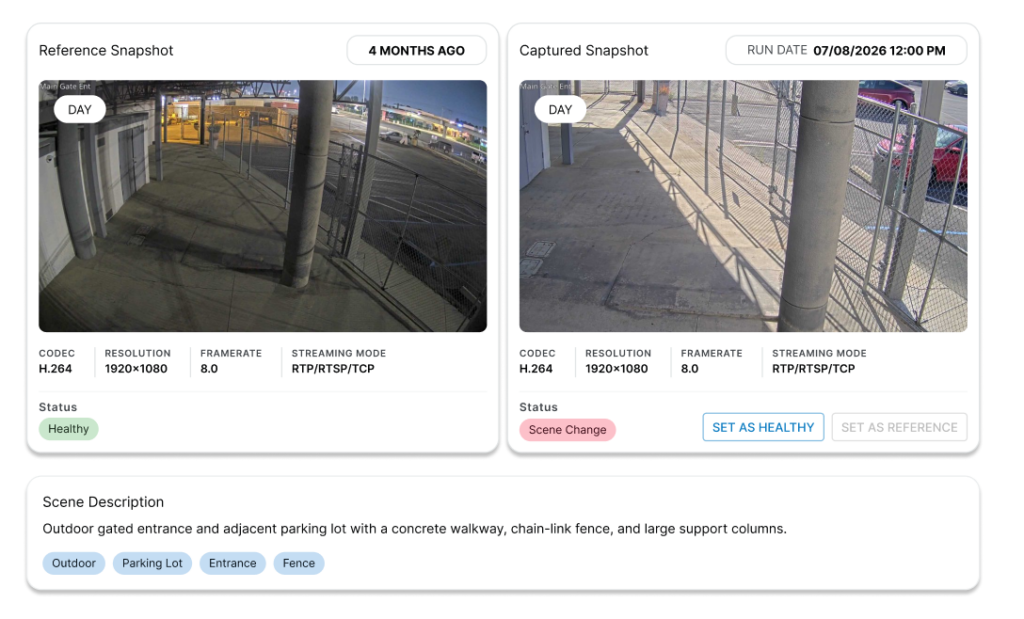
That means you are not just cleaning up the system you inherited. You are creating a known-good starting point for managing it going forward.
And that matters because a camera does not have to be offline to fail at its job.
It can be powered on, connected, recording beautifully, and pointed six feet away from the thing everyone assumes it is watching.
Once you know the views are correct, establishing that baseline gives you a way to catch those quieter problems without periodically inspecting every camera yourself.
A lot of inherited-system chaos comes from knowledge living inside one person’s head.
They knew which camera acted weird when it got cold.
They remembered to run the retention spreadsheet before the quarterly meeting.
They checked the parking lot cameras every Monday.
Then they left.
The goal is to turn as much of that institutional memory as possible into repeatable processes.
Think about the questions people will ask you regularly.
Create reports around those questions and schedule them.
For example, camera snapshot reports at different times of day give you an easy way to review what cameras are seeing during different lighting conditions and catch problems like glare, darkness, focus issues, or obstructions.
If you are using AI Image Analysis, your verified camera views can also become the baseline for ongoing monitoring. Instead of relying entirely on someone noticing that a camera has shifted or its view has deteriorated, the system can help surface changes that deserve a closer look.
Retention reports can give you an ongoing record instead of turning every audit into a scavenger hunt.
Health reports can go directly to the people who need them.
If someone wants a spreadsheet every Monday, you should not have to remember to build and email a spreadsheet every Monday for the rest of your natural life.
These four reports are a good starting point.
Monitoring only helps if you pay attention to it.
If every tiny event generates a notification, eventually all of them become background noise.
Figure out which conditions require action and how quickly.
A critical camera dropping offline for a meaningful period may deserve immediate attention.
A brief connectivity hiccup may simply need to be recorded as part of a pattern.
The Boring Toolbox health dashboard and configurable thresholds are designed around that problem: giving you visibility into down cameras, storage, SD card issues, connectivity events and other health information without making your inbox your new worst enemy.
The ideal state is pretty simple:
If something needs your attention, you know.
The Boring Toolbox is built specifically to make managing Milestone XProtect faster and easier, but your VMS is only one part of the environment. Manufacturer and network tools can make inherited systems significantly easier to untangle.
If you have a lot of Axis devices, AXIS Device Manager can help with discovery, firmware, certificates, passwords and bulk configuration directly at the device level.
It is especially useful when the problem you are trying to solve lives on the camera rather than inside XProtect.
AXIS Optimizer for Milestone XProtect is a free suite of integrations from Axis that brings additional Axis functionality into Milestone XProtect.
If you inherited a heavily Axis-based environment, it is worth understanding what it can do before recreating workflows the previous administrator may already have had available.
For Hanwha environments, Wisenet Device Manager provides similar manufacturer-level management capabilities, including device discovery, configuration and firmware updates.
Sometimes the first question is simply:
What is actually on this network?
Tools such as Angry IP Scanner can help inventory IP addresses and identify devices when documentation is incomplete. [or check out this reddit discussion for more options]
Use network scanning tools only on networks you are authorized to administer, obviously. Your first week running the VMS is probably a bad time to accidentally create a cybersecurity incident.
When you first inherit a video system, everything feels like something you have to remember.
The real upgrade comes when you can stop worrying about all of that because you know you have your systems organized and optimized and processes in place for when something goes wrong.
If you inherited a Milestone XProtect environment and want an easier way to figure out what you have, identify problems, clean up configurations and keep tabs on it going forward, try The Boring Toolbox free for 30 days.
And once you finally have the inherited system under control, you can move on to the fun part:
Finding out why somebody named a camera DO_NOT_DELETE_FINAL2.
You’ve just been handed responsibility for a Milestone XProtect system you didn’t build, the documentation is questionable, and you’re not...

Your cameras can be online, recording, and still produce unusable video. AI Image Analysis adds a new layer of health...

If you're managing a large Milestone XProtect deployment, you already know the routine: camera checks, storage reports, compliance audits, and...