
The Exhibit Hall at ISC West can be overwhelming if you don't go in with a plan. Before booths start...


Zipstream is genuinely one of the smartest, most practical pieces of video technology out there.
Not because it’s flashy.
Not because it adds another dashboard or toggle.
But because it solves a problem everyone who manages a video security system runs into once a system is live.
Most video systems waste an incredible amount of storage and bandwidth recording… nothing. Empty hallways. Static scenes. Hours of video where absolutely nothing changes.
Zipstream was built to fix that. (Read the history of Zipstream)
Instead of treating every pixel the same all the time, Zipstream intelligently prioritizes what actually matters in the scene. Motion, people, vehicles keep full forensic detail. Backgrounds and inactive areas get compressed more aggressively. The video stays useful, but the system stops burning resources for no reason.
That’s not an accident. That’s thoughtful engineering.
It’s what happens when a company like Axis Communications looks honestly at how their products are used in the real world and says, “Okay, where are the points of friction and how can we make our product easier to use?”
We love that kind of thinking.
Build smart things that reduce pain instead of creating more work.
The wild part is that many cameras already support Zipstream by default… and yet a huge number of systems never benefit from it.
Why? Because even when the camera supports Zipstream, Milestone doesn’t (really) automatically enable it.
And if you do it the wrong way, it might not turn on at all.
So let’s fix that.
Below, we’ll break down how Zipstream works, why it’s worth enabling, the most common mistakes people make, and the cleanest way to turn it on so you actually see your storage numbers drop.
Zipstream is a smart compression technology developed by **Axis Communications** and supported by many modern cameras.
Instead of recording everything at full quality all the time, Zipstream dynamically adapts compression based on what’s happening in the scene.
In practice:
Axis reports average bandwidth and storage savings of 50% or more, without sacrificing usable video.
The key word there is average.
Results vary by scene, motion, and camera placement.
But when Zipstream is working, the savings are absolutely noticeable.
This is one of the most common Zipstream frustrations you’ll see online.
Most cameras that support Zipstream:
But Milestone does not (really) automatically enable it.
If Zipstream isn’t set to at least medium inside the Milestone Management Client, the VMS keeps pulling full streams like Zipstream doesn’t exist.
Result:
This is why you’ll see admins asking things like:
Yes. You do.
The best early indicator is not bitrate graphs or camera settings.
It’s: Top Storage Consumers
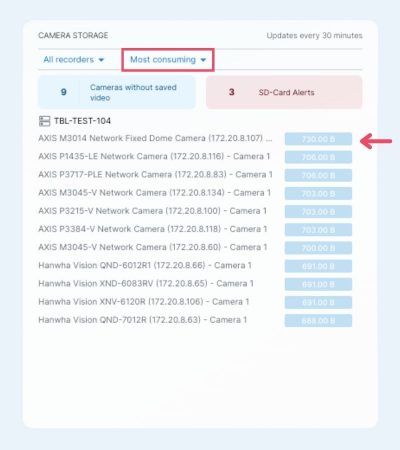
Once Zipstream is enabled correctly, the cameras that usually dominate that list should start drifting down over time.
Not instantly. But steadily.
If you enable Zipstream and don’t see any change, that’s not a coincidence. It’s a signal.
In most cases, Zipstream isn’t “failing.” It’s just not being applied the way you think it is.
Here’s what’s usually happening:
When you try to enable Zipstream across a mixed group of cameras and even one model in that group doesn’t support it, Milestone can’t apply the setting cleanly in bulk.
You can find the camera models that support Zipstream here. Just select “Zipstream” in the filter menu under “Video”.
Zipstream may still be supported on individual cameras, but your ability to manage it consistently across the group breaks down.
From your perspective, the outcome looks the same either way.
Nothing changes.
Storage numbers don’t move.
It appears like Zipstream didn’t work.

This is why it is a good idea to group cameras by manufacturer and model before enabling features like Zipstream.
Consistent device groups make bulk configuration predictable. Mixed groups don’t.
And this is exactly where most Zipstream rollouts quietly go sideways.
This is where The Boring Toolbox saves you from accidental self-sabotage.
In The Boring Toolbox, go to the device groups section and create a new device group folder called Zipstream.
Inside that folder, use The Boring Toolbox’s “Auto Device Groups” function to create a device group based on make and model. Only include camera makes and models that are Zipstream compatible.
Here is the link again to see the full list of cameras that are compatible with Zipstream.
Use the Zipstream filter under the video section.
Now open Management Client.
That’s it.

If you’re thinking what I’m thinking, that’s a LOT of data to manually collect and update regularly. It could be your full time job and it leaves a ton of room for error.
Most of the time:
Always check grouping first.
Zipstream changes compression behavior, not resolution or frame rate.
If playback looks choppy, it’s usually related to:
Zipstream tends to get blamed, but it’s rarely the root cause by itself.
If you care about:
Then yes. Absolutely.
It’s one of the few features that delivers real savings without touching retention, resolution, or frame rate.
Zipstream is one of those features that feels obvious once you understand it.
It reduces storage.
It lowers bandwidth.
It doesn’t ask you to sacrifice video quality or change how you work.
You just have to enable it correctly.
If your cameras support Zipstream and you’re not using it, you’re leaving real savings on the table. Group your cameras properly, turn it on deliberately, and let your storage numbers tell the story.
This is what smart, practical video technology looks like.

Your go-to XProtect eXPerts. We learn the technical stuff that will save you time and make it less boring.
Your go-to XProtect eXPerts. We learn the technical stuff that will save you time and make it less boring.
The Exhibit Hall at ISC West can be overwhelming if you don't go in with a plan. Before booths start...

Spread a little love (and laughter) in the security world. Download free, not-at-all-creepy Valentine’s Day cards made just for security...

This blog introduces Analytics, a new feature in The Boring Toolbox that brings powerful trend visualization to Milestone XProtect. Learn...