
Close
Close

Close
Close
At some point, the email arrives.
Your cybersecurity team is doing an audit and wants to know when the camera passwords were last changed.
You know the honest answer is somewhere between “when the integrator installed them” and “please don’t make me check.”
Because changing a camera password isn’t difficult. Changing passwords across 400 cameras, updating XProtect, making sure every camera reconnects, documenting the new credentials and figuring out which one you missed is where things get ugly.
Here’s how to change camera passwords in Milestone XProtect, avoid knocking cameras offline and make the process manageable when you’re responsible for hundreds or thousands of devices.
The short version: every camera password lives in two places, on the camera and in XProtect. Change both, then make sure the camera reconnects and starts recording again before you move on.
Cameras are network devices, so your cybersecurity team is going to treat them like network devices.
Axis Communications surveyed roughly 900 end customers and found that cybersecurity, risk and privacy was the most commonly cited trend affecting their business at 61%, ahead of AI at 34%. (The State of AI in Video Surveillance, 2025)
In its follow-up research, cybersecurity ranked as the No. 2 concern for end users, integrators and system designers alike. (Axis Perspectives 2026)
And most attacks on connected devices are not exactly Ocean’s Eleven. The same Axis research cites findings that 99% of IoT exploitation attempts rely on vulnerabilities that are already publicly known.
Keeping firmware current handles part of the problem. Credentials are another basic piece of the puzzle.
If 400 cameras are all using the password somebody created during installation six years ago, that deserves some attention.
Especially if nobody is entirely sure who knows it anymore.
You probably do not need to change every camera password every 30 days just because somebody once decided password expiration sounded secure.
Current NIST digital identity guidance for user passwords has moved away from arbitrary periodic resets and toward changing passwords when there is evidence of compromise. Camera credentials should ultimately follow your organization’s cybersecurity policy, but there are a few situations where a password change makes sense:
If there is no formal schedule, staff and vendor changes are a good trigger for reviewing who has access and whether credentials should be updated.
This is where camera password changes get interesting.
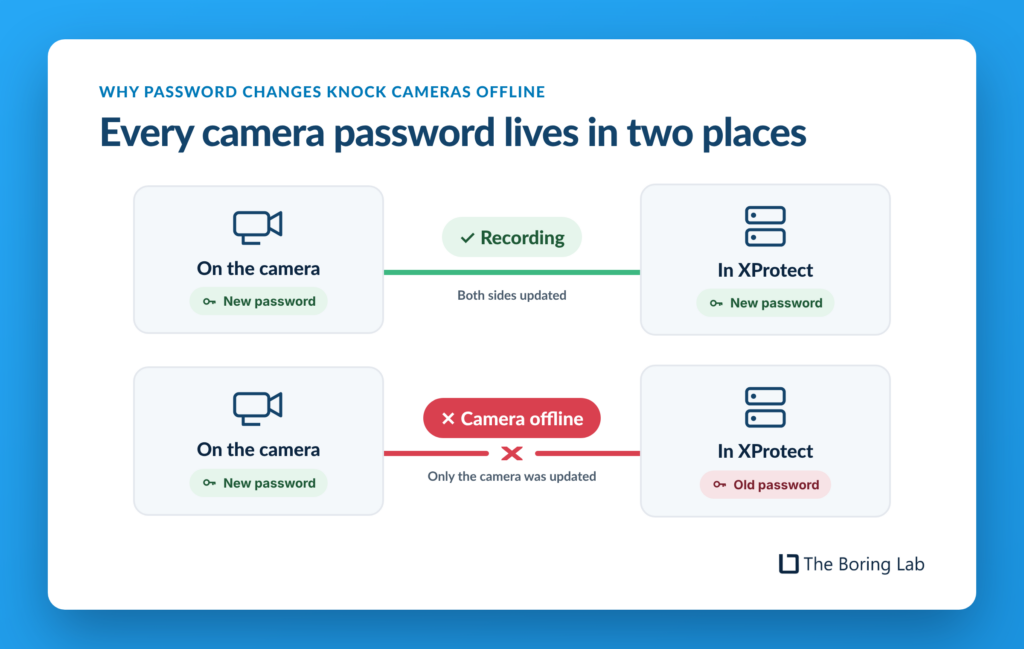
The credential XProtect uses exists in two places: on the camera and in XProtect.
The recording server uses the credential stored in XProtect to authenticate with the camera.
Those credentials have to match.
Change the password on the camera but forget to update XProtect, and the recording server can no longer log in. Your camera goes offline and stops recording.
Update XProtect without changing the camera, and you have the same problem in reverse.
This is how a perfectly reasonable cybersecurity project turns into someone discovering three days later that Camera 213 has not recorded anything since Tuesday.
Whatever method you use, the job is not really complete until both sides have been updated and you have confirmed that the camera is back online and recording.
Not sure whether a password change knocked something offline? Here’s how to find camera and storage problems before someone needs the footage.
If you only have a few cameras, doing this manually is completely reasonable.
For each camera:
Depending on your XProtect version and camera manufacturer, you may also be able to initiate the password change through the Management Client rather than logging directly into each camera.
And if PowerShell is your happy place, the free MilestonePSTools module built by Milestone’s own Josh Hendricks is worth looking into for automating changes across larger systems.
The problem with the manual method is mostly math.
If each password change takes four minutes, 100 cameras takes nearly seven hours.
1,000 cameras takes about 67 hours.
At some point, “we should really rotate those passwords” starts sounding suspiciously like a project for next quarter.

This particular problem is one of the reasons The Boring Toolbox exists.
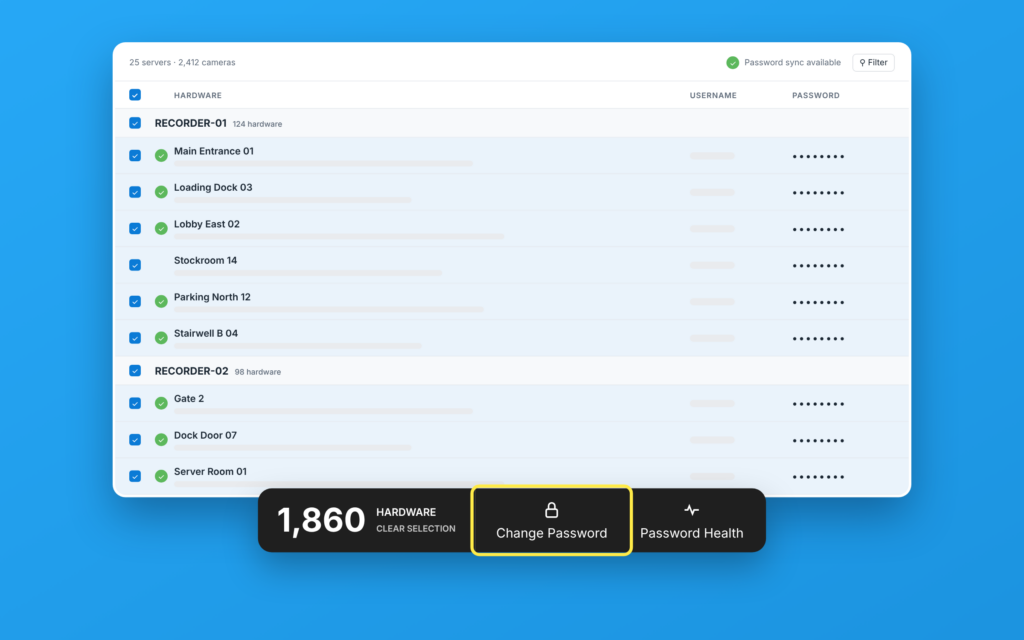
Instead of working through cameras individually, you can select the devices you want to update and change their passwords in bulk (and lots of other bulk functions too!).
You can build your selection based on things like device groups, camera models, recording servers or search criteria, then update the whole group together.
So rather than spending several days opening camera interfaces and copying credentials around, you can change passwords across a 1,000-camera system in roughly 5 minutes and about 10 clicks.
More importantly, it makes better password practices much more realistic.
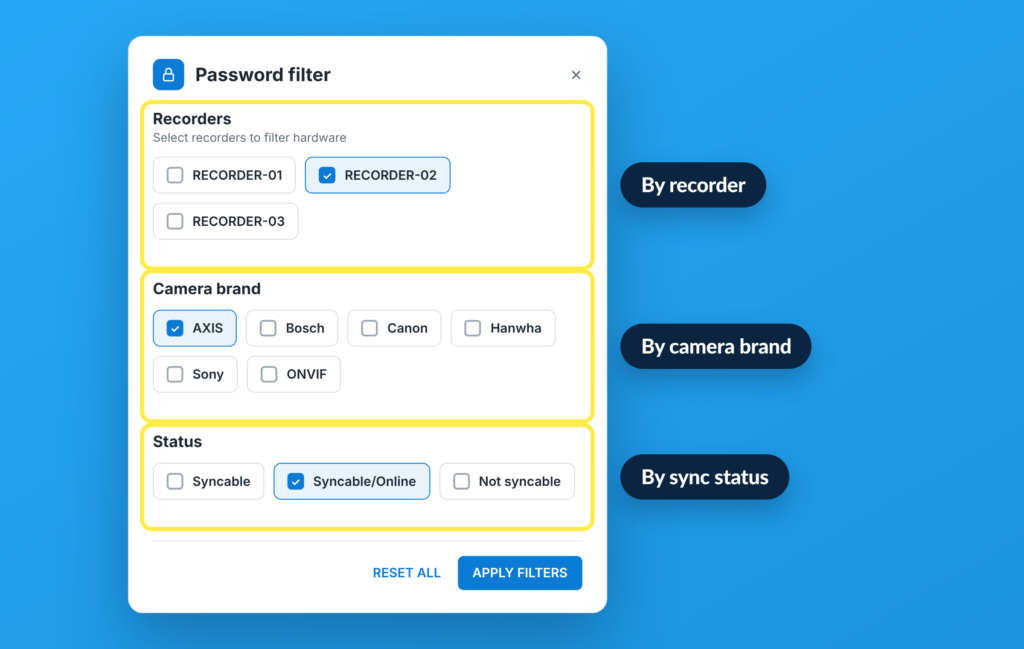
You can create groups automatically by camera model or recording server and give different groups different credentials instead of using one password across the entire system.
You can also check password health and generate reports, which is useful when the request came from cybersecurity in the first place.
Instead of replying: “we’re working on it.”
You can send them the report. Much better email thread.
Peter Sassmannshausen at Emmanuel College used The Boring Toolbox to get years of camera passwords under control before a major security server upgrade.
In his words:
After using the Toolbox, the time required to manage and change passwords dropped dramatically.
That is usually the problem with password rotation in large XProtect environments. Nobody disagrees that credentials matter. The process is just tedious enough that it gets postponed.
Make the process easier and suddenly good cybersecurity hygiene becomes something you can actually keep up with.
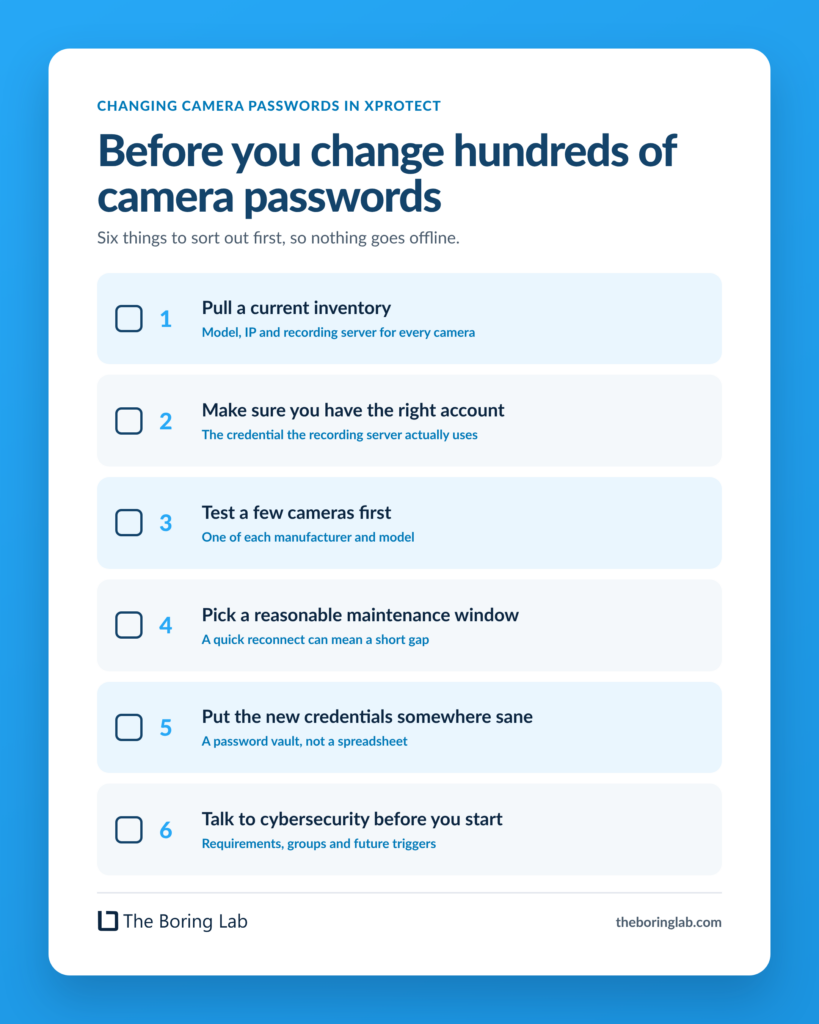
A little prep can save you from spending the afternoon figuring out why 47 cameras disappeared.
Pull a current inventory.
Know which cameras you are changing, along with their model, IP address and recording server.
Make sure you have the right account.
Confirm which credential the XProtect recording server is actually using before you change anything.
Test a few cameras first.
Run through cameras from the different manufacturers and models in your system before updating hundreds at once.
Pick a reasonable maintenance window.
A credential change can cause a brief reconnect, so do not choose the exact moment everyone suddenly needs flawless recording. Putting those cameras in Maintenance Mode first keeps your notifications quiet while they reconnect.
Put the new credentials somewhere sane.
Preferably a password vault. Not a post it note on someones desk.
Talk to cybersecurity before you start.
Agree on password requirements, whether credentials should be unique per camera or group, and what should trigger future changes.
Doing that conversation after you have already changed 800 passwords is significantly less fun.
The recording server can no longer authenticate with the camera. The camera will appear offline in XProtect and recording will stop until the stored credentials are updated to match.
Briefly. When the credentials change, the recording server has to reconnect to the camera, which can leave a short gap in recording. That’s why it’s worth picking a quiet window and confirming each camera is back online and recording before you call it done.
Unique credentials for individual cameras provide the most isolation if one credential is compromised. At minimum, using separate credentials across logical groups is a substantial improvement over using one password for every camera.
Your cybersecurity team should ultimately determine the policy, especially if you have requirements around credential storage and rotation.
There is no universal rotation interval that makes sense for every organization.
Passwords should be changed when default credentials are still in use, after a suspected exposure, when admins or vendors with access leave, and whenever your organization's security policy requires it.
Changing one camera password is easy.
Changing 400 of them without skipping one, knocking cameras offline or sacrificing several days to repetitive clicking is a different job entirely.
That is the part worth automating.
The Boring Toolbox lets Milestone XProtect admins update camera passwords in bulk so a basic cybersecurity task does not turn into a major maintenance project.
And when cybersecurity asks when you last updated your camera passwords, you can finally give them an answer that does not begin with:
“Well…”
Book a demo with us or download The Boring Toolbox on your management server and use it for free for 30 days.