
Close
Close

Close
Close
“Everything working?”
If you manage a Milestone XProtect system, you know how much work can be hiding inside that question.
You need to know which cameras are available, whether recording servers are healthy, where storage is getting tight, and whether that camera someone took down for maintenance is still supposed to be down.
Preferably before someone walks in asking for video.
That’s why we bring those checks together in The Boring Toolbox’s health monitoring dashboard. Open Current Site to check camera and recording server availability, review storage warnings, and see recent status changes across your XProtect system. Then use what you find to decide what needs attention first.
Here’s how we’d put it to work.
Start with offline recording servers, critical cameras, and failover status. Those checks help you identify issues that could affect multiple cameras or particularly important coverage.
Picture opening your dashboard and seeing a recorder offline.
That’s where we’d start.
A recording server problem can affect a whole group of cameras. Before investigating individual devices, find out which cameras depend on that recorder and whether they’re still recording.
The Live Monitoring panel brings offline recorders, recorders in failover, offline cameras, and critical cameras into the same view. You can start prioritizing without piecing together the site’s status from separate checks.
A critical camera covering an important entrance may jump to the top of your list. A recorder in failover gives you a reason to investigate the original failure and plan a return to normal operation.
In the dashboard shown here, Live Monitoring refreshes every 30 seconds. Its offline counts apply to cameras and recorders that have been down for at least five minutes.
You still get to do the troubleshooting. We’d just like you to spend less time figuring out where to begin.
This is already part of the routine at the City of Vacaville. Its published customer story describes daily checks for offline and flapping cameras after adopting The Boring Toolbox.
As Daniel Looney, Systems Administrator II, put it: “We just didn’t have the tools to be proactive.”
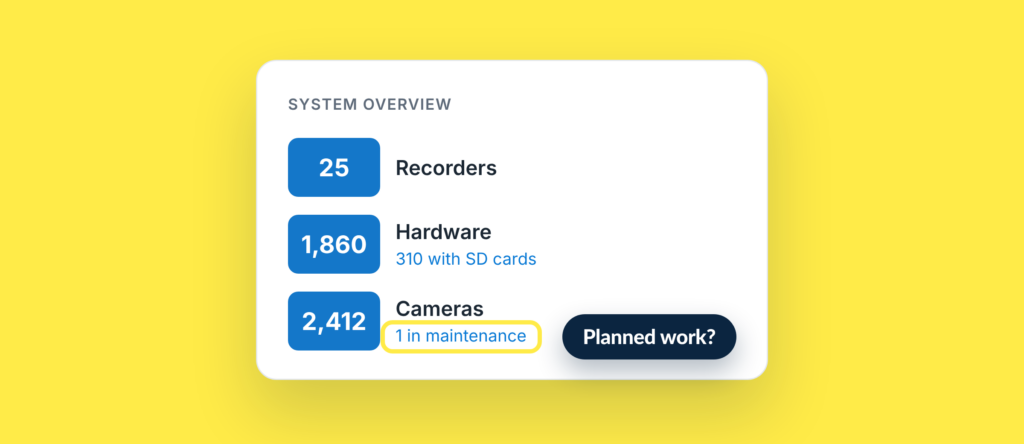
Check maintenance status before assigning more troubleshooting. A planned camera replacement and an unexpected outage need different responses.
You don’t want two people chasing the same problem while a third is halfway up a ladder replacing the camera.
System Overview shows how many cameras are in maintenance, alongside the site’s recorder, hardware, and camera totals. Use that as a prompt to confirm whether the unavailable device is part of planned work.
If it is, check the work’s status. If it isn’t, keep investigating.
The overview also helps you get oriented when moving between customer sites. You have the size of the system and the number of hardware devices with SD cards in front of you before diving into individual issues.
For the practical steps on handling planned downtime, see our guide to using Maintenance Mode in The Boring Toolbox
Use Recorder Storage to focus on volumes below your selected free-space threshold, then investigate what that available space means for the system.
Nobody enjoys a storage conversation that starts with “we need to fix this today.”
The dashboard helps you bring that conversation forward.
In the example, Recorder Storage is filtered to show volumes below 25% free space. Two volumes appear, with the recorder, drive, capacity, and remaining space visible.
Now you have something specific to work with.
A free-space percentage starts the investigation.
To decide what action to take, review the volume’s role, storage growth, and retention.
This is where we’d move into Analytics for the longer view. You can investigate growth and retention before deciding whether the next step is configuration work, further monitoring, or additional capacity.
Use Camera Storage to identify the biggest consumers, then compare their usage with what those cameras are supposed to do.
“The server is filling up” only gets you so far. We’ve had so many customers who’ve realized their resolution was set too high, consuming storage like a hungry toddler and eating the budget along with it.
Knowing which cameras are contributing gives you somewhere useful to start.
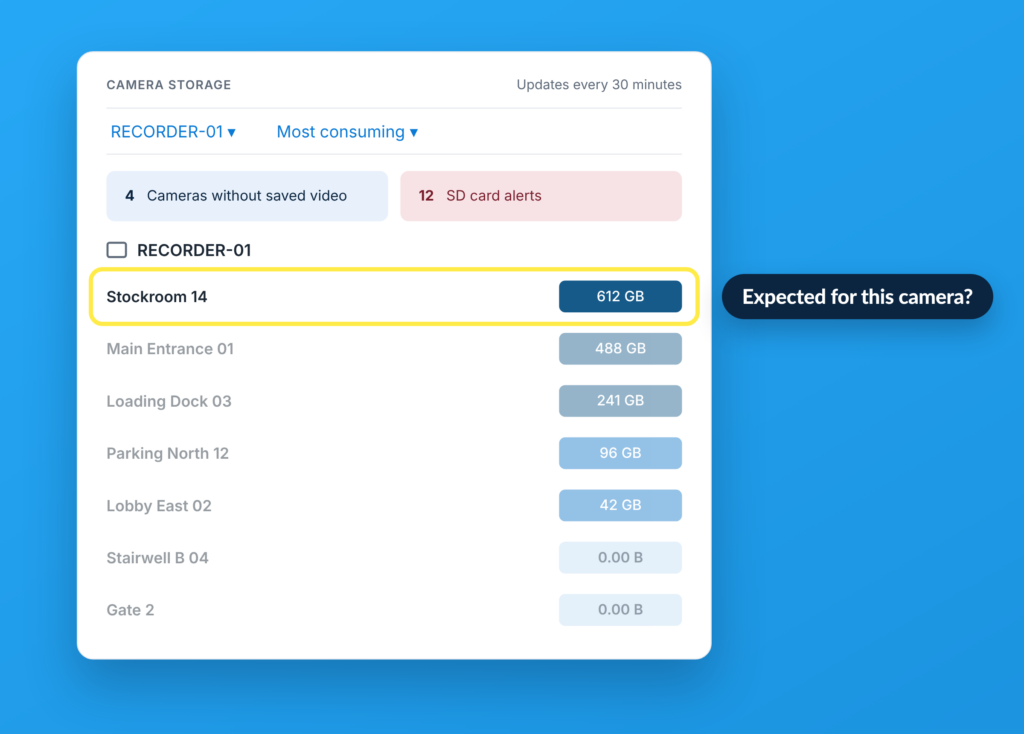
Narrow the view by recorder and review the cameras consuming the most storage. A busy entrance recording continuously may deserve every gigabyte it uses. Another camera may have settings that no longer match its purpose.
Check the scene, recording schedule, and intended configuration before changing anything.
That’s a much better foundation for a maintenance recommendation than assuming every high-storage camera is a problem.

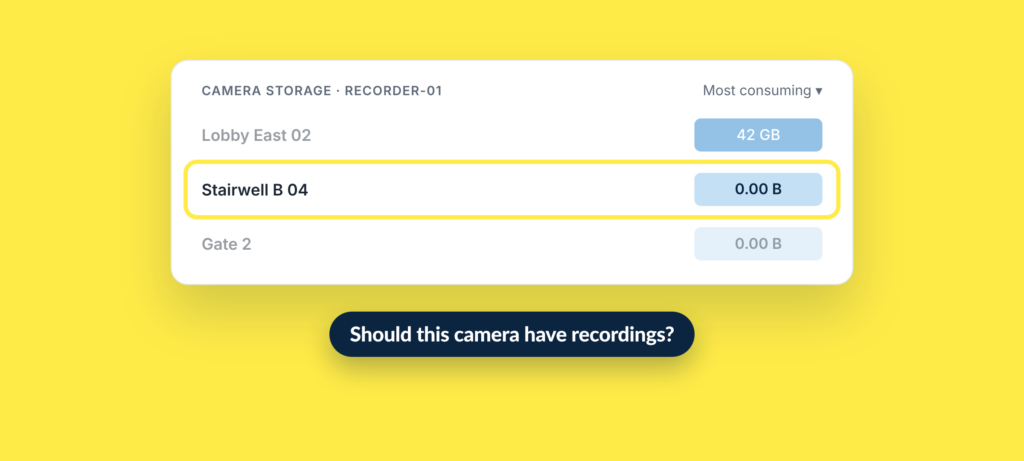
Confirm whether recordings should be present, then check the recording schedule, configuration, and playback.
Pay attention to the other end of the storage list, too.
If a camera you expect to be recording shows 0.00 B, investigate it. There may be an explanation in its configuration or schedule. There may be a recording issue that needs attention.
The dashboard gives you a reason to look. Checking the camera and its recordings tells you what’s happening.
The same principle applies to SD-card alerts. Review the affected devices and establish the cause so you can put the right work on the maintenance list.
Use Recent Events to establish when a device changed status and give the next person a concrete starting point for troubleshooting.
“Camera went down” leaves a lot of work for whoever gets the message.
A device name, IP address, recorder, and timestamp make that handoff considerably more useful.
Recent Events brings those details together so you can compare an outage with network changes, server maintenance, or other work happening around the same time.
And when the device comes back online, finish the check. Verify that recording has resumed and that new footage is available before closing the issue.
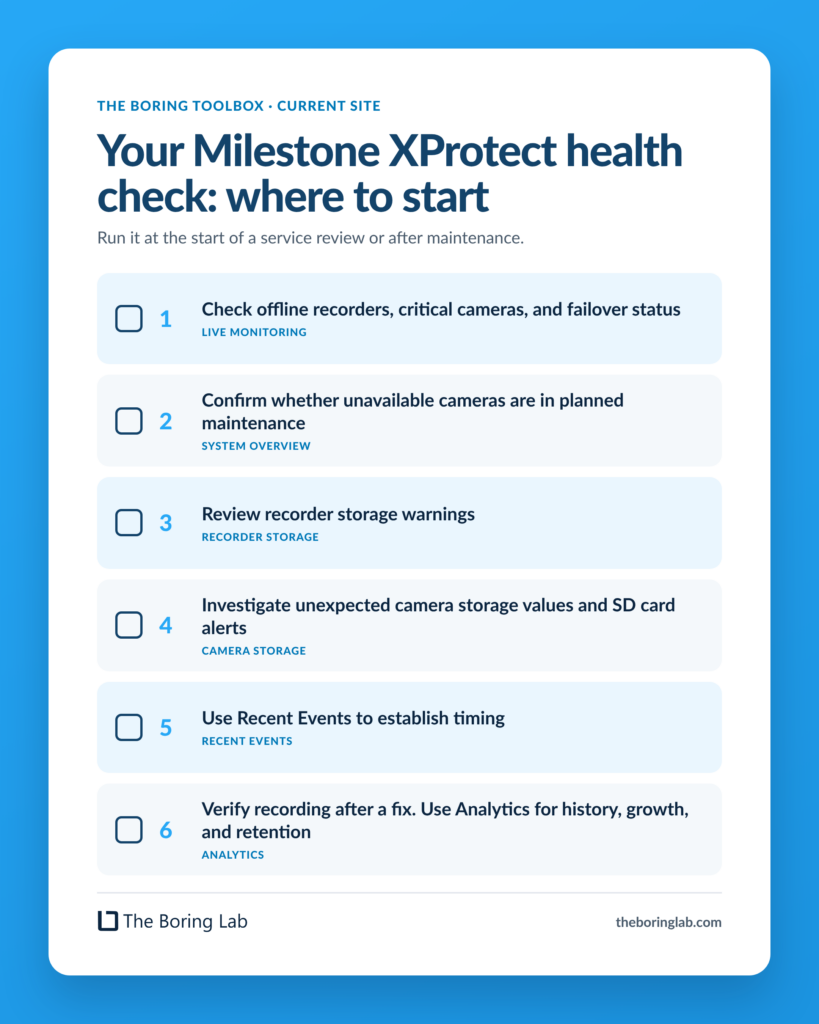
Start with availability and coverage, review storage concerns, and follow up on unexpected changes.
Here’s the order we’d use:
Make this your first stop at the beginning of a service review or after maintenance. You’ll have a clearer picture of what needs work and a more useful conversation with the people responsible for fixing it.
One customer, William at a major U.S. city police department, described the value this way:
“Because of The Boring Toolbox, I am confident my video will be there when I need it.”
That’s the outcome we want to help you work toward: finding the issue, understanding its impact, and taking action while there’s still time to do something about it.
Book a demo and bring us the health checks your team spends the most time on or start your 30-day free trial to get started on your own.